Duo Multi-factor Authentication Instructions
Blinn College District is moving to multi-factor authentication for accessing online assets. This will provide an added layer of security protecting both you and our information resources. You will need to enroll an external device through which you can receive a push notification or passcode for multi-factor authentication purposes. Please follow these steps.
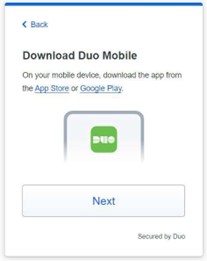
- Download the Duo Mobile app on your phone from the App Store or Google Once installed, click Next.
- Click on the link emailed to you through the enrollment process.
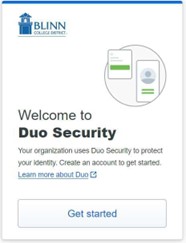
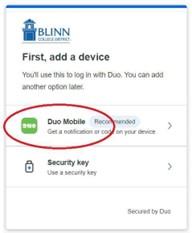
- On the screen that opens in your browser, click the Get started Your mobile phone is recommended for use with Duo. Click Duo Mobile (Recommended) on the next screen.
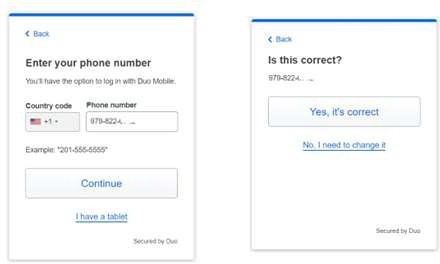
- Enter your phone number with area code and click Then click Yes, it's correct on the verification page.
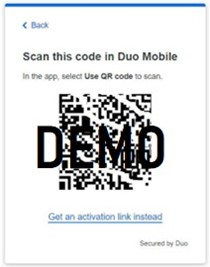
- Scan the QR code that was emailed to you while the app is Follow your phone's prompts from there to fully activate Duo. You will need to allow the app to take pictures and record videos.
If you are using your phone for DUO activation instead of a computer or other device, then click on the "Get an Activation Link" to proceed. Alternatively, if you cannot scan the code, click to have an activation link emailed to you instead.
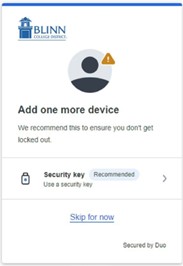
- As soon as the app sees the QR code or you click the link sent to you via text, it will register the device. Follow the prompts on your phone to complete the process, then click Continue on the computer prompt. If you are not adding an additional device, click Skip for now on the "Add one more device" prompt.
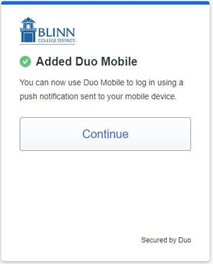
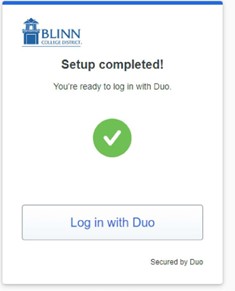
- Setup is now Click Log in with Duo. Your phone will receive a Duo prompt. Press the green Approve icon on your phone.
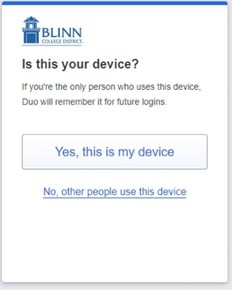
The computer will ask if this is your device. Click Yes, this is my device if you are not on a public computer.